 ASTRUM
 Phone Doctor
How to free up iPhone storage without losing the photos you want
Start with iPhone Storage, review unwanted photos and videos carefully, and understand iCloud syncing before you remove anything.
Start by finding out what is taking up space. If downloaded shows or a large app dominate your storage, deleting a few photos may make little difference. If your photo library is the main contributor, a careful review of unwanted photos and videos is a better starting point than selecting everything a cleanup tool suggests.
Check the storage breakdown first
Open Settings → General → iPhone Storage. Review the categories and the app list, then read any recommendations your phone offers. Choose a category that is both large and something you can review confidently.
Apple distinguishes offloading an app, which retains its documents and data, from deleting it. Its device-storage guide explains those choices. A photo cleaner does not provide unrestricted access to other apps’ files or the operating system’s storage.
Before touching your photo library
Make a separate copy of important photos and videos and check that you can open it. iCloud Photos is a synchronized library: deleting an item can remove it from other devices using the same Apple Account too. Do not treat another device showing the same library as an independent backup.
Apple’s photo deletion guide explains syncing and the usual 30-day Recently Deleted recovery period. Its iCloud storage guidance also documents circumstances where deleted items may not be recoverable, including when you exceed your iCloud storage limit. Keep your own copy of anything you cannot afford to lose.
Review unwanted media in Phone Doctor
Phone Doctor: AI Cleaner helps identify duplicate and similar photos and videos. Use those suggestions as a review queue:
- Compare the items in each group, including focus, expression, and the moment captured.
- Choose which originals you want to keep before selecting items to remove.
- Work through a small batch first, and inspect the remaining library before continuing.
Similar photos are not necessarily duplicates. Two pictures taken seconds apart may contain different expressions or details worth keeping. A cleanup suggestion cannot decide which memory matters to you.
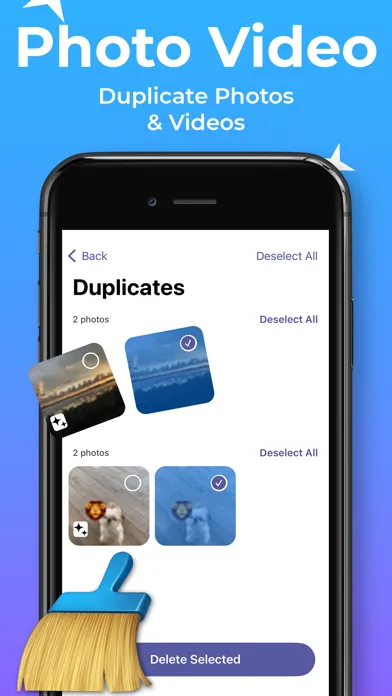
Phone Doctor’s published App Store artwork shows a duplicate-review example. The current layout can differ. Review selections before confirming removal.
Check the result before doing more
Return to iPhone Storage to assess the change. Deletion and storage reporting do not always update at the same moment. Do not permanently empty Recently Deleted just to make a progress number look better; permanent removal takes away that recovery route.
If photos are not the main source of the problem, return to the storage breakdown. Reviewing downloaded media or an unused app may be more useful than another pass through your photos. For available cleanup tools and purchase details, see Phone Doctor on the App Store.