 ASTRUM
 QR Scanner
What to check before opening a QR code link
A practical checklist for reading the destination of a QR code and spotting reasons to pause before you open an unfamiliar link.
A QR code can contain a web address, contact details, Wi-Fi information, or other text. If it contains a link, scanning it reveals that link. It does not establish who controls the destination or whether you should trust it.
For a familiar menu or ticket, a quick scan may be all you need. Before a QR code asks you to sign in, pay, or install something, take a moment to read where it leads.
Pause at the destination preview
Read the website name before opening the link. If you expected a restaurant menu but see an unrelated address, ask the business for its official website. A sticker covering another printed code is also a reason to pause.
Look for misspellings, extra words, and shortened links that hide the destination. A familiar company name somewhere inside an address is not enough. For example, bank.example.net belongs under example.net; the word “bank” at the front does not identify the bank’s website. This is an address-format example, not a site to visit.
The FTC recommends inspecting unexpected QR-code links, especially when a message creates pressure to act quickly.
Preview a link in QR Scanner
- Scan the code with the camera, or select a saved image containing a code.
- Review the decoded result and choose the link-review action.
- Read the destination shown in the Review Link screen and any warning messages.
- Continue to the browser only if the destination and the request make sense.
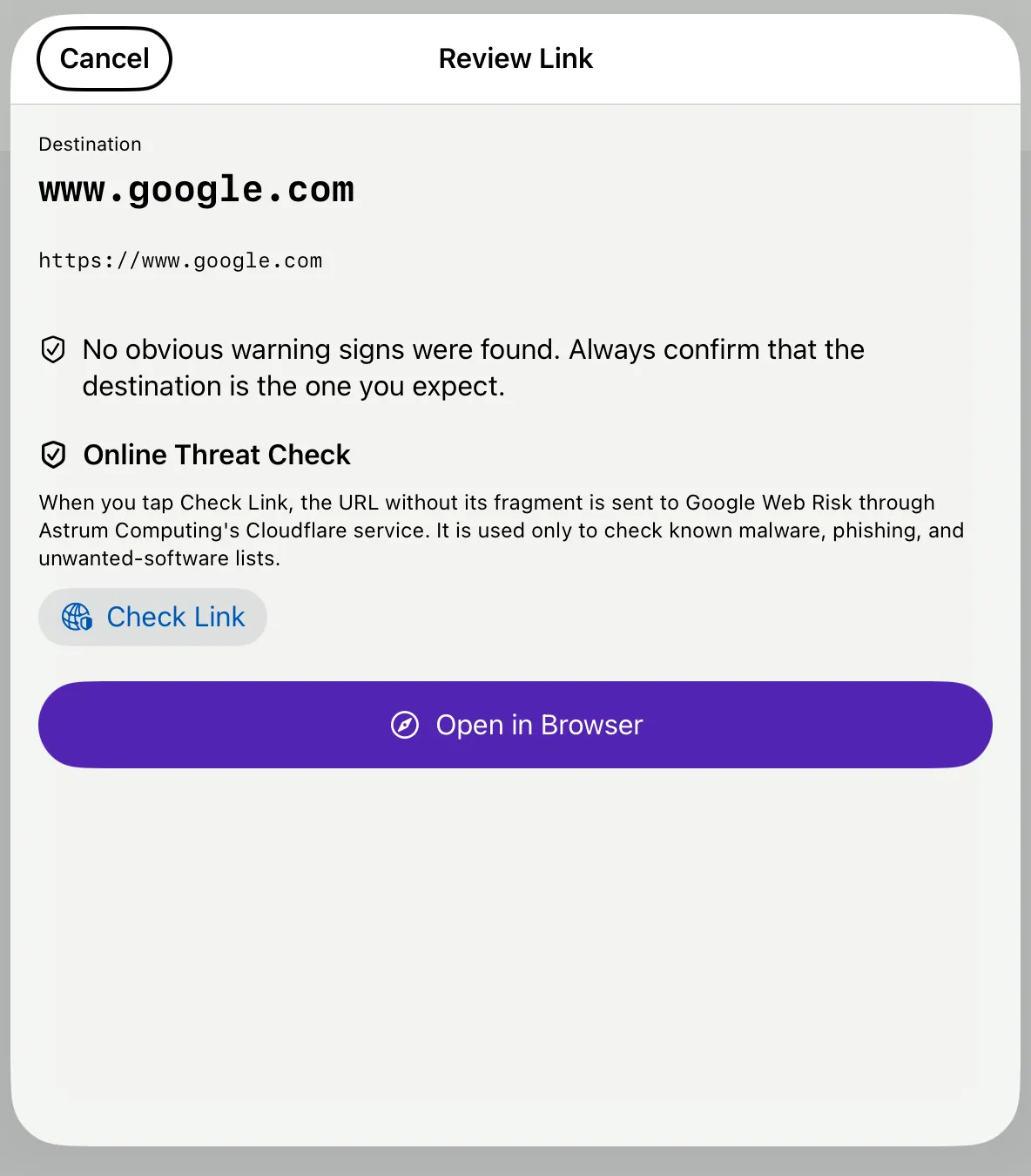
A captured QR Scanner review screen with an example destination. Check Link is a Pro feature. Layout can vary by device and app version.
Treat warnings as extra context
QR Scanner shows on-device warnings for patterns such as unencrypted links, shortened addresses, or embedded credentials. These signals give you something specific to inspect; a warning is not proof of a scam.
With QR Reader Pro, tapping Check Link requests an online reputation check for known threats when available. The website address is sent through Astrum Computing’s Cloudflare service to Google Web Risk only after you choose that action. See the app’s privacy policy for details.
A result is advisory. A new or changed website might not be on a known-threat list, and “no warning found” does not guarantee safety.
Use another route for sensitive actions
For payments or account sign-ins, consider opening the organization’s known app or entering its verified website address yourself. Do not enter credentials just because a page displays a familiar logo. If an unexpected message claims there is an account problem, contact the organization through a route you already trust.
Further reading
If the code is saved on your phone, see how to scan a QR code from a photo. The App Store listing describes current features and Pro requirements.