 ASTRUM
 Phone Doctor
How to find and review duplicate photos on iPhone
Compare duplicate and similar photos on iPhone, try Apple Photos’ built-in tools, and see how to check a Phone Doctor selection before deleting.
To find duplicates on current iOS versions, open Photos → Collections → Utilities → Duplicates. Review a group before choosing Merge. If the collection is missing, your phone may still be indexing the library or may not have identified duplicates; see the steps below.
Before deleting or merging, open the suggested copies and decide what you want to keep. Check sharpness, expressions, edits, and the details around the edges. Two pictures that look alike in a thumbnail can capture different moments.
Apple Photos or Phone Doctor: where should you start?
On a narrow screen, scroll the comparison sideways to read every column.
| Your task | A starting point | What to know |
|---|---|---|
| Merge duplicates already identified by iOS | Apple Photos’ Duplicates collection | Built into Photos. Read Apple’s merge instructions and review each group first. |
| Review similar shots and choose unwanted items yourself | Phone Doctor’s Duplicates or Similar Photos categories | A separate review workflow with reversible selection before deletion. Limited Photos access limits the scan to allowed images. In-app purchases may apply. |
| Free space when photos are only a small part of storage | iPhone Storage in Settings | First identify the large category. Neither photo workflow can freely clean other apps’ private files. |
This compares workflows, not detection accuracy or storage savings. Apple’s merge guide documents the built-in option. Phone Doctor’s review controls are demonstrated with original sample images below; its current listing describes features and purchases. You can stay in Photos if it covers your task.
Make a separate copy of anything important
Check that important originals are saved somewhere you can open independently of your synchronized photo library. A second device displaying the same iCloud Photos library is not a separate backup: a deletion can sync to it too.
Apple’s photo-deletion guidance explains the normal 30-day Recently Deleted recovery period. Its iCloud storage guidance also describes recovery limits when you exceed your iCloud storage allowance. Avoid relying on Recently Deleted as your only copy of a photo you cannot replace.
Try Apple Photos’ duplicate tools first
Open Photos → Collections → Utilities → Duplicates on current iOS versions. Older versions can place Duplicates differently. Look at each group before using Merge. Follow Apple’s merge instructions for your version of iOS.
If the collection is missing, Apple may still be indexing your library or may not have identified duplicates. Apple says duplicate detection needs the phone to be locked and connected to power, and indexing can take a few days. A missing collection alone does not tell you how many unwanted copies you have.
If that built-in workflow covers your task, you can continue in Photos. Phone Doctor is another option when you want its separate review categories and video or contact tools. Check its current features and in-app purchases before choosing it.
Review a group in Phone Doctor
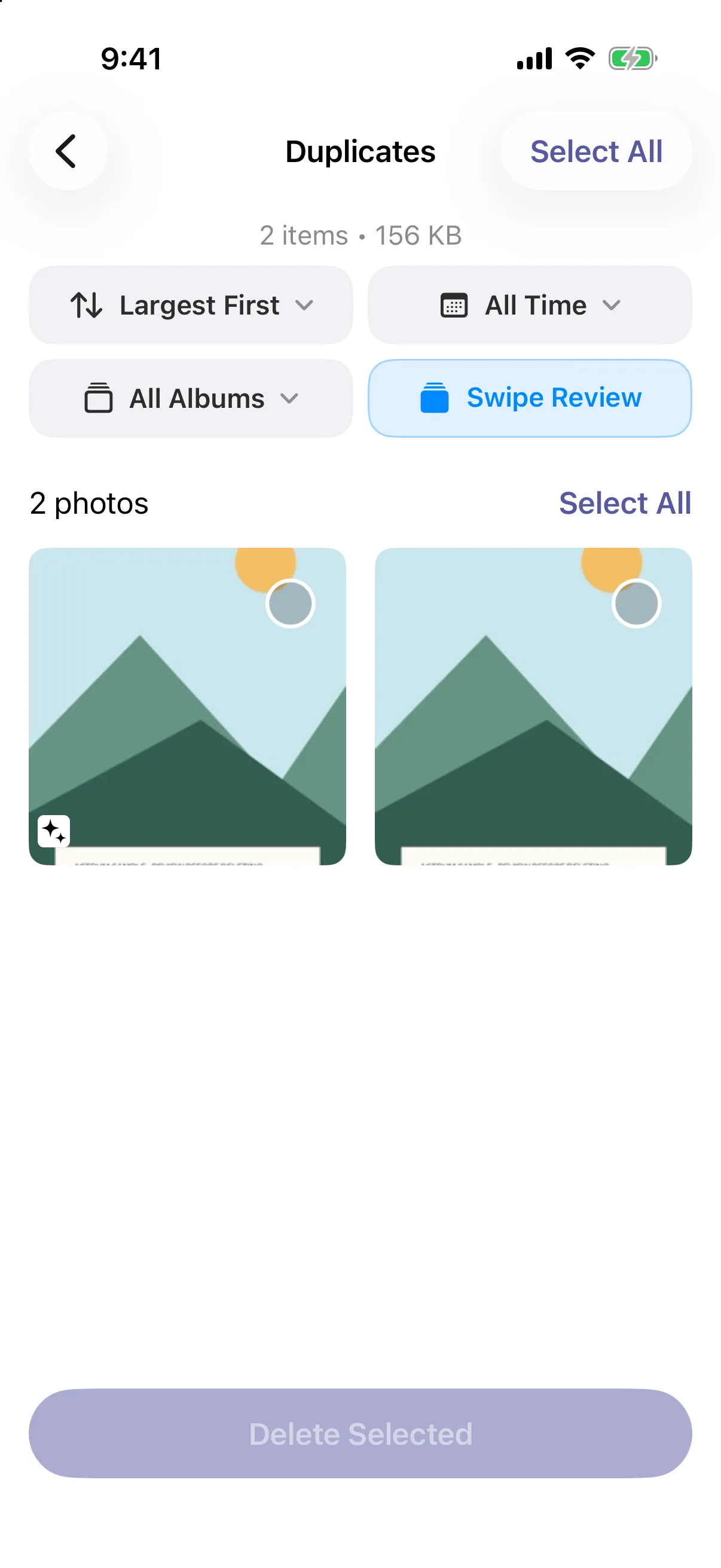
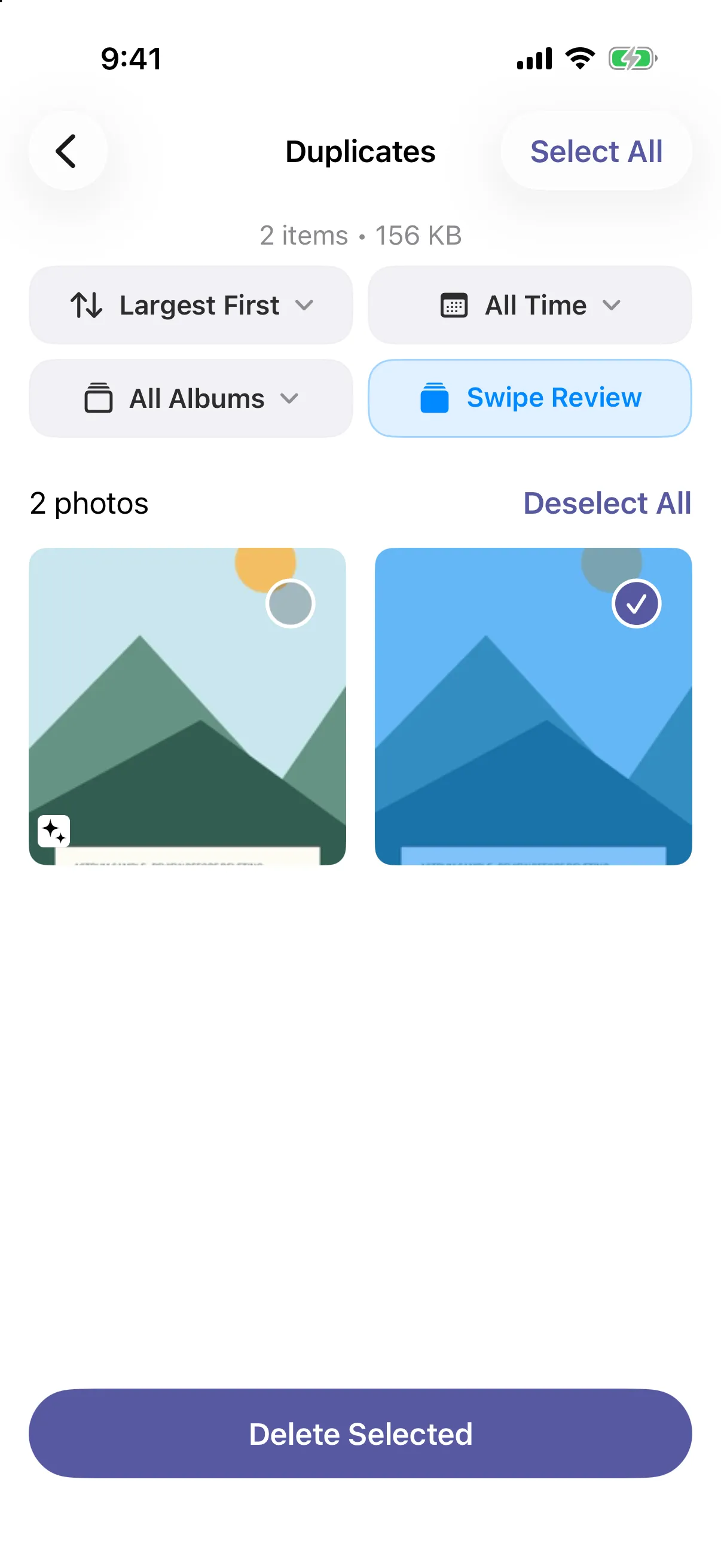
The example below uses a local Phone Doctor 1.1.41 build on an iPhone simulator with original sample illustrations. It shows the app’s review controls, rather than a claim about how many photos it will find or how much storage you will recover. The current public App Store listing confirms duplicate and similar-photo features; your library and app layout can differ.
- Open Phone Doctor → Photos, then choose Duplicates. Use Similar Photos when you want to review related shots. With limited Photos permission, the app can scan only the items you allow.
- Open a suggested image for a larger view. Compare each candidate with the copy you plan to keep.
- Use the selection control on an unwanted item to mark it for deletion. Inspect the whole group before selecting more.
- If you change your mind, tap that item’s selection control again to remove it from the proposed deletion.
- Check the selection before choosing Delete Selected and approving the system request. Leave uncertain items unselected.
Want this review workflow? See Phone Doctor’s current features, compatibility, and in-app purchases on the App Store.
Treat similar photos as separate decisions
A nearly identical shot might have a different smile, a sharper subject, or an edit you want. Compare those details at a larger size. Keep both when they serve different purposes, such as an original and an intentional crop.
A suggested “best” image is a starting point for your review. It cannot know which expression or memory you prefer. Grouping can also vary with the library and the images available to the app; a category without suggestions is not proof that your library contains no similar shots.
Start small and check what remains
For your first pass, work on a small group you understand. After a confirmed deletion, inspect the remaining library before doing more. Do not permanently empty Recently Deleted simply to make a storage number change sooner.
If your goal is more free space, check what actually occupies the phone before continuing. Our iPhone-storage guide explains how to choose between photo review, downloaded media, and unused apps. You can also explore Phone Doctor’s photo, video, and contact tools.
FROM ASTRUM COMPUTING

Phone Doctor: AI Cleaner
Review duplicate and similar photos, look through videos, and organize contacts with Phone Doctor for iPhone.
See the current features, compatibility, and in-app purchases on the App Store.